¶ FocusRO Mobile app
This mobile app is specifically designed to manage field operations, site visits and reporting anytime, anywhere. Employees can install the app, view their assigned visits, and submit reports with descriptions and screenshots.
¶ Download now (FocusRO mobile app android): FocusRO on Google Play
About the app
- FocusRO – An app with a data-driven solution for measuring and optimising employee productivity.
- Monitor the performance and location of sales representatives and marketing agents in real-time.
- Unify your marketing and field teams under a single, intuitive dashboard.
- Gain instant visibility into your team’s whereabouts and activity
- Maintain control and oversight of your sales force with actionable insights
- Streamline attendance tracking for remote, hybrid, and on-site employees.
¶ Login
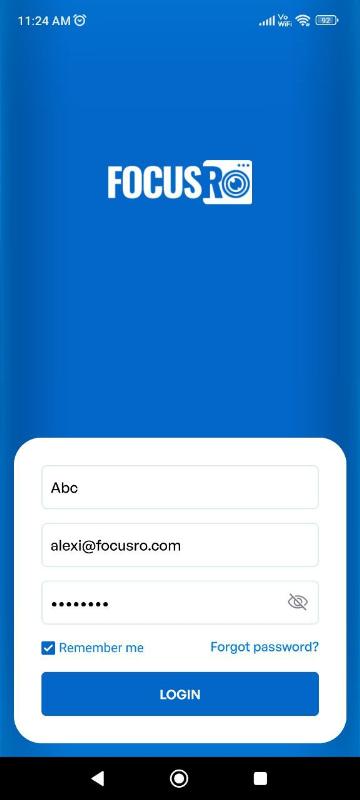
Enter your user login details:
- Company Code – Enter the code provided by your organization.
- Email – Enter your registered email address.
- Password – Enter your account password.
- Tick the "Remember me" checkbox if you want the app to remember your credentials for future logins.
- Click the “Eye icon” to show or hide your password.
¶ Start
Tap “Start” to begin
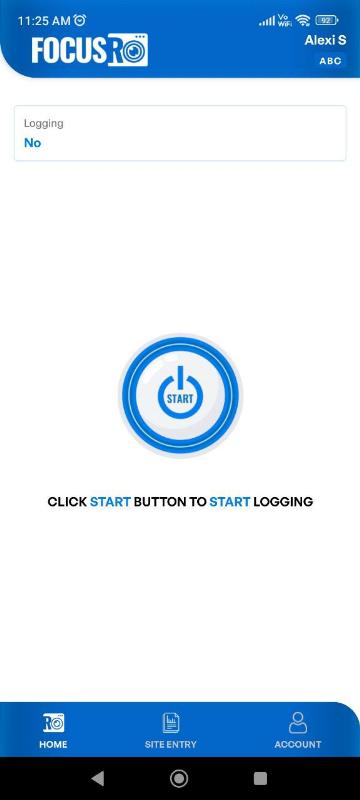
- Once you click the "Start" button, you will be directed to the required permissions page.
¶ Required permissions
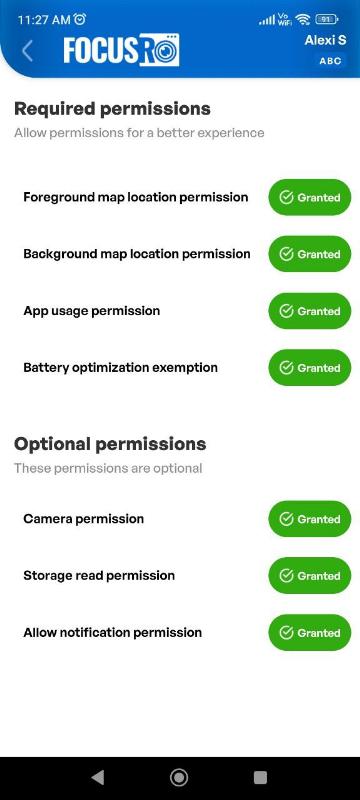
To ensure the FocusRO app functions optimally for real-time location tracking and site visit management, you need to grant the following permissions.
These are essential for the core functionality of the app:
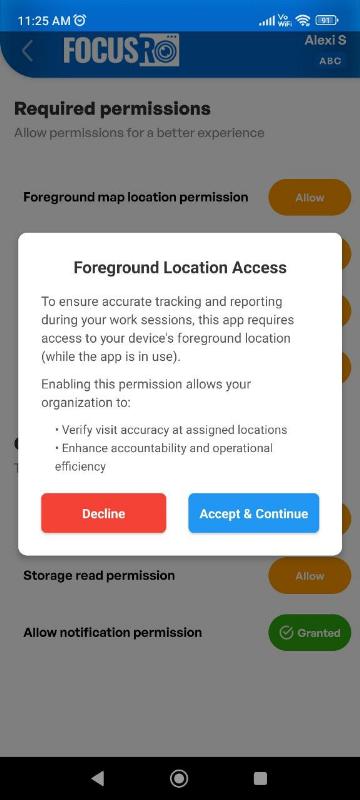
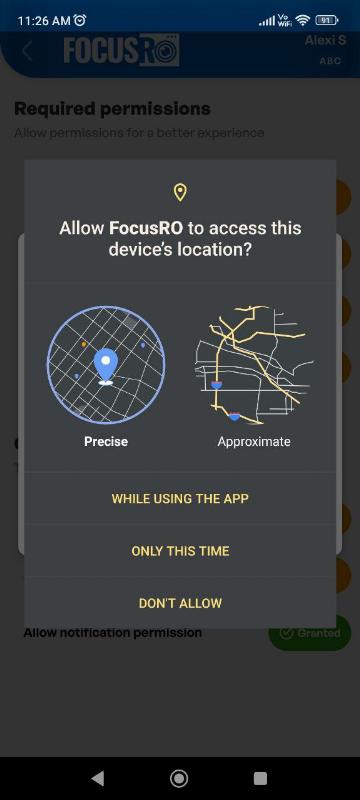
¶ Foreground map location permission
Enables the app to access your location while the app is in use.
Action: Click on “Accept & Continue” button and click on “While using the app” option to grand the permission.
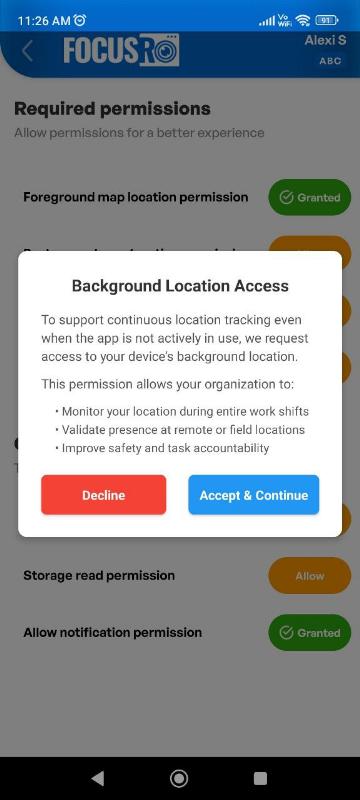
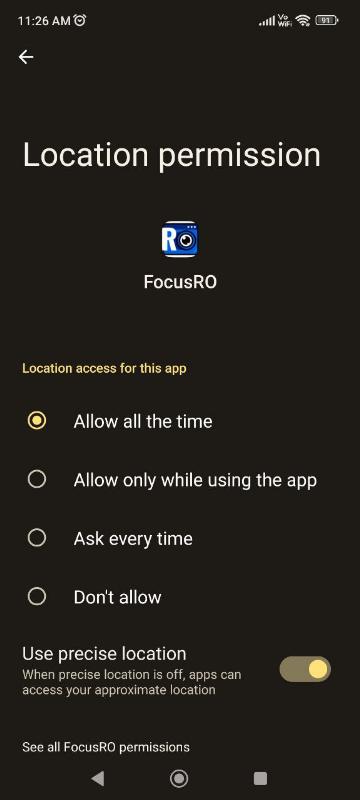
¶ Background map location permission
Allows location tracking even when the app is running in the background.
Action: Click on “Accept & Continue” button to ensure uninterrupted tracking and click on “Allow all the time” option to grand the permission.
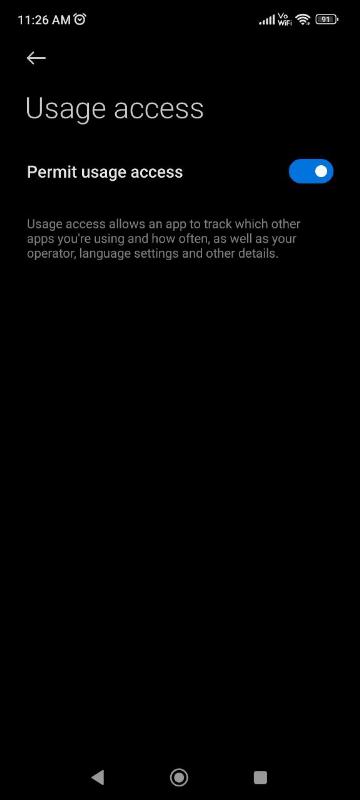
¶ App usage permission
Helps the app monitor and optimize performance based on your usage.
Action: Select “FocusRO” app
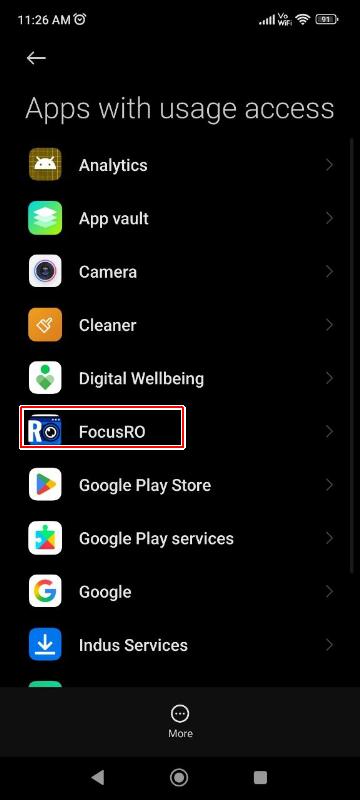
- This is only a warning message. Only app usage data will be accessed. no need to worry. please proceed by clicking the “OK” button.
.jpg)
- “Turn on the toggle switch” to grant app usage permission.
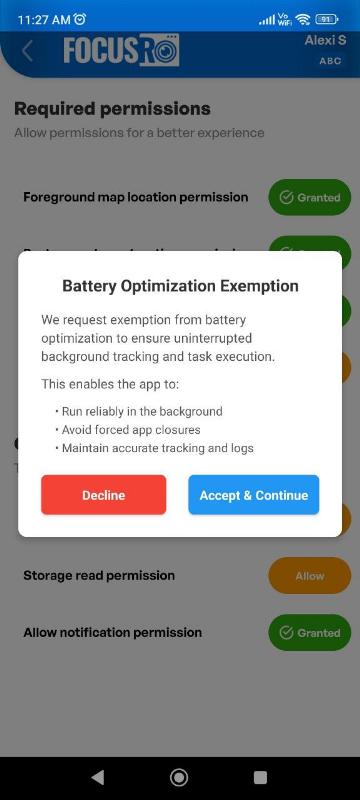
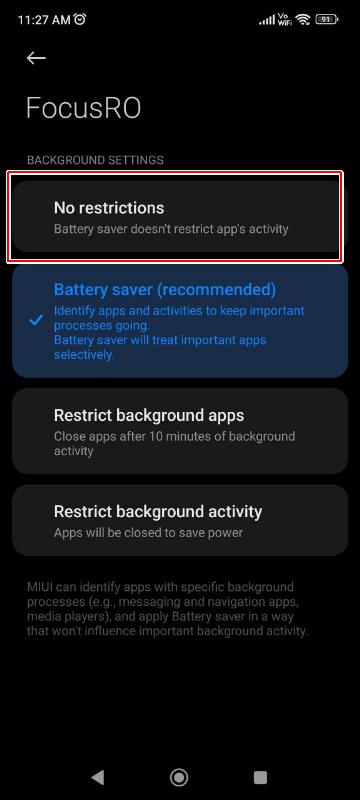
¶ Battery optimization exemption
Prevents your phone’s battery-saving settings from interrupting the app's background processes.
Action: Click on “Accept & Continue” button to ensure uninterrupted tracking and click on “No restriction” option to grand the permission.
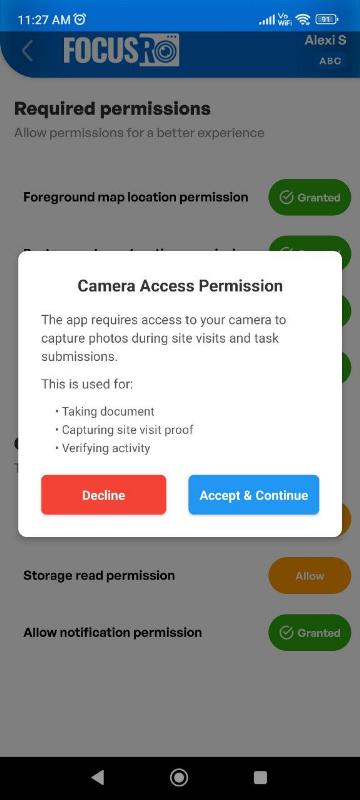
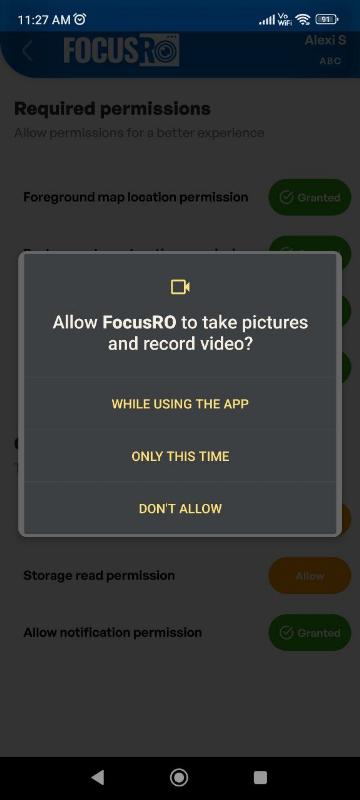
¶ Camera permission
Required for capturing site visit photos and to submit description.
Action: Click on “Accept & Continue” button and click on “While using the app” option to grand the permission.
¶ Storage read permission
Enables the app to access media/files for uploading documents or images.
¶ Allow notification permission
Ensures you receive important updates or alerts from FocusRO.
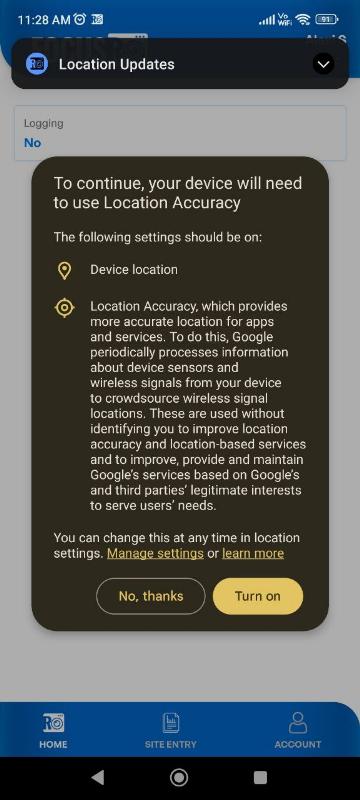
- Once all required permissions are granted, you will be prompted to enable device location. Please click the "Turn On" option to proceed.
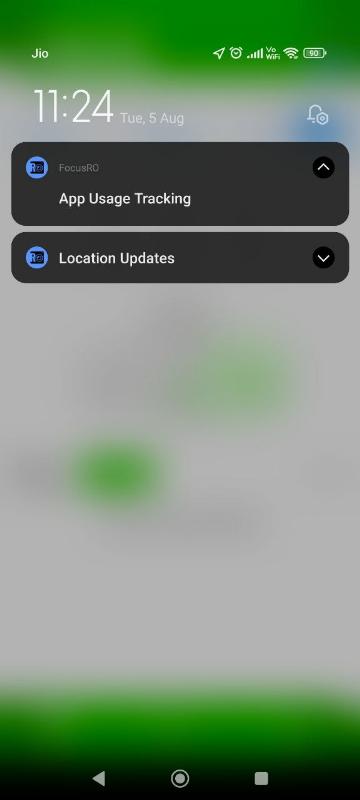
- Once all permissions are granted, the FocusRO app will begin tracking your employees' current device location, route, and app usage data.
- A push notification will appear indicating that the app is tracking location updates and app usage.
¶ Home
¶ User profile (Top right corner)
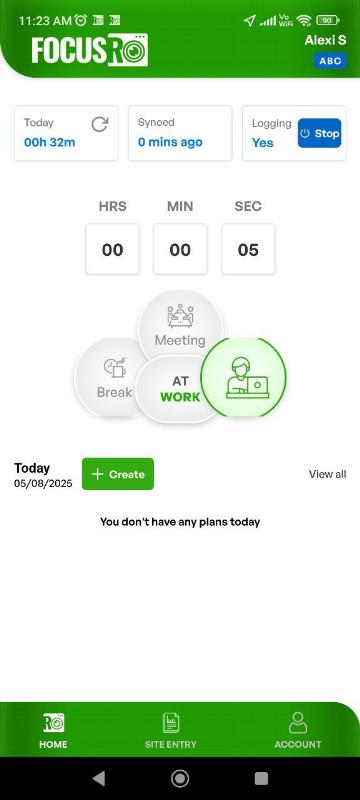
Your name is displayed (e.g., Alexi S)
¶ Work session information
Today : Shows total time logged for the current day. example: 00h 32m indicates you have worked for 32 minutes today and click the “refresh icon” to view the total logged duration.
Synced : Displays the last sync time with the server. example: 0 mins ago confirms real-time sync.
Logging : Indicates if logging is currently active. a blue button shows Yes with a Stop button to end the session.
¶ Timer
A live countdown timer is displayed in HRS, MIN, and SEC format to track ongoing activity. If you stop the app, the total duration will automatically sync to today’s logged time. Restarting the app will reset the timer and start tracking from 0 minutes again.
¶ Activity selection
Once you start the app, it will automatically start in "At Work" mode by default. The selected activity will be highlighted in green. To switch to “Meeting” or “Break,” simply change the status from "Work" to your desired option.
¶ Daily planner section
Today’s Date: Displayed at the bottom left.
Create Plan: Use the + Create button to schedule or log planned activities.
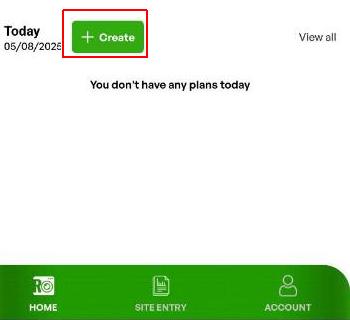
Plans List: If there are any scheduled tasks, they will appear here. currently shows: You don't have any plans today.
¶ Bottom navigation menu
Home – Return to the main dashboard.
Site Entry – Record or manage physical site entries.
Account – Access sites, profile settings, preferences and more.
¶ Create visit plan
- Plans List: If there are any scheduled tasks, they will appear here. currently shows: You don't have any plans today.
- Click on “+Create” button to create new visit plan for the day.
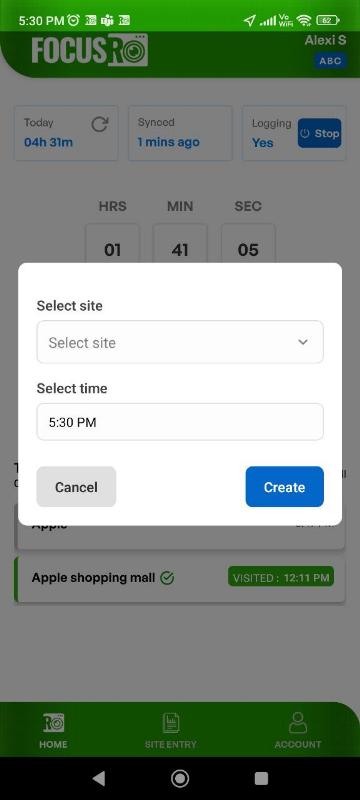
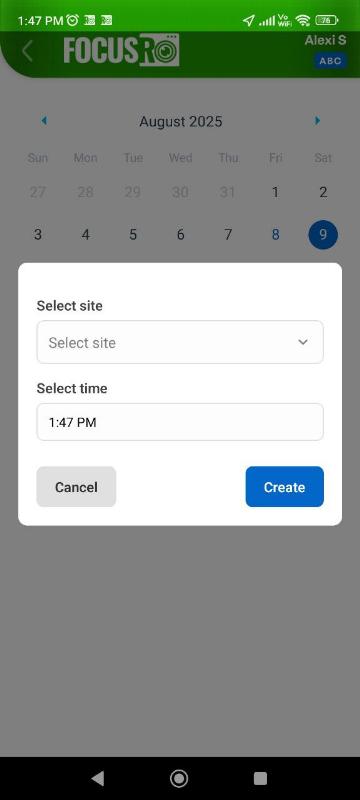
- Site name : Select the site to be visit from the dropdown menu (e.g., Smart Bazar).
- Visit time : Select the time slot for the visit.
- Once all the details are filled in, click the “Create” button to finalize the plan.
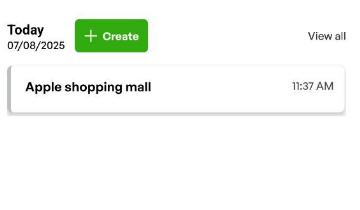
- Once a visit plan is created, the site visit details will be displayed under "Today's visit plan."
- Reach the site location physically and In the site plans, hover over the site you visited.
- Click on the "Mark as visited" option. ensure that you are at the exact site location. If you are not within the GPS range, you will not be able to submit the site visit report, and you will see a message: "Out of range – Please reach [Site Name] to start report."
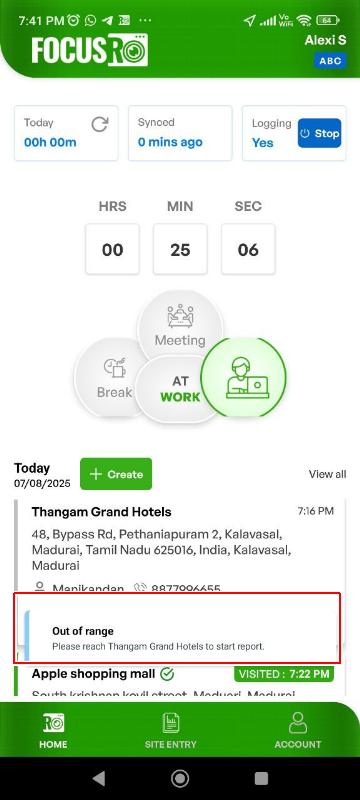
- If you are at the exact site location, Click on the "Mark as visited" option
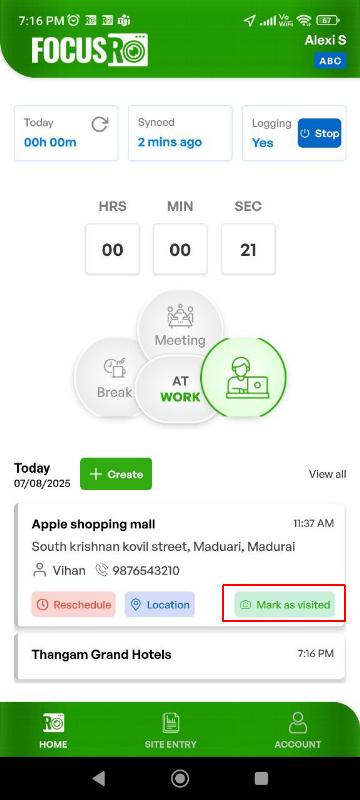
- You will be redirected to a “Site entry” form to enter the site visited details.
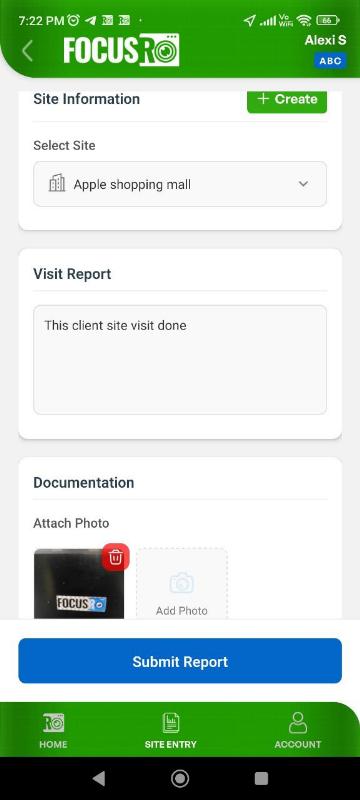
- Fill in all "Site information visted report" (purpose of visit, observations work updates or discussions held)
- Under the “Documentation” section, attach photos (minimum 1, up to 5 photos allowed).
- “Submit” the report after completing all required details.
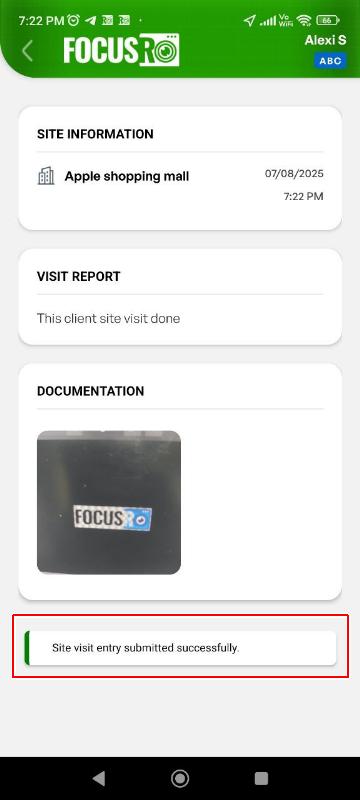
- Upon successful submission:
- A success message will appear.
- The site will be highlighted and marked as “Visited” on the home page.
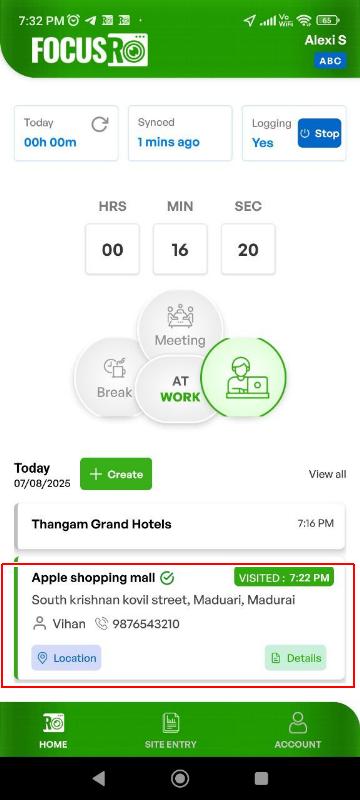
- To view the submitted details, simply click on "Details" to access the submitted report.
- Click on “Location” to view the site exact location in the map.
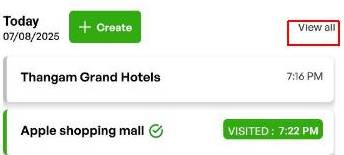
¶ View all
- Click on "view all" option to view the site visit planner.
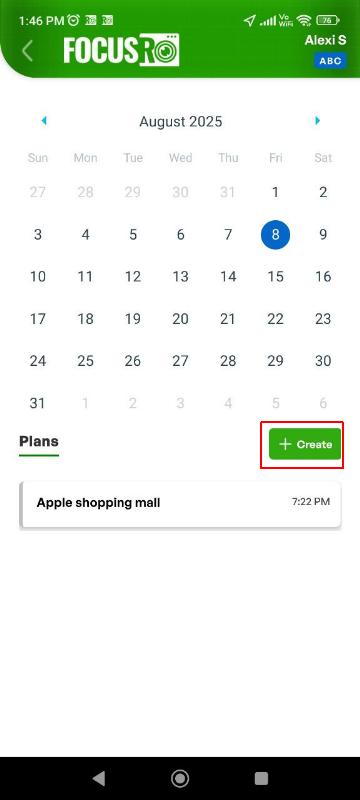
- Check your plans by date : Dates with scheduled visits will be clickable. for example, in the screenshot, august 8th is selected, and a plan is listed for that day.
- View the Plan Details : Under the “Plans” section at the bottom, you can see the scheduled site and time. example shown: Apple shopping mall – 7:22 PM you can tap on the plan to view more details.
¶ Create a new plan
To add a new visit, tap the green “+ Create” button and enter the required details.
¶ New site entry creation
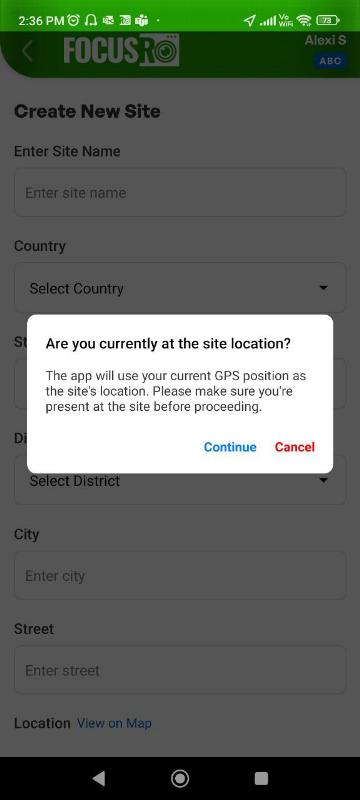
- Navigate to “Site entry” and click on “+Create” option to create new site
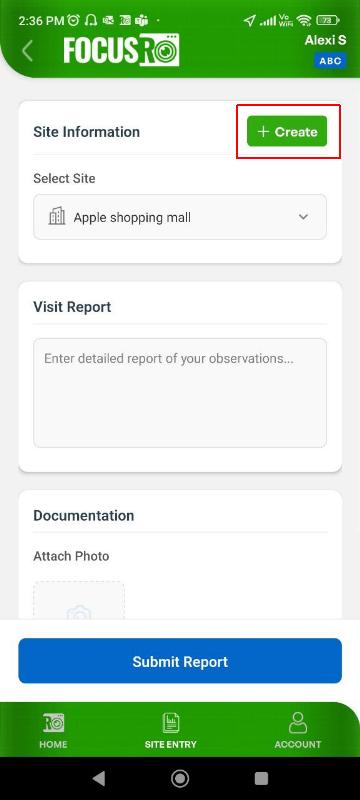
- When you click on "Create new site", the app will check if you are at the site location. If you are not at the exact GPS location, you will not be able to create the site. So, please ensure you are physically present at the correct site location before proceeding.
- If you are at the correct site location, click on “Continue” to proceed. The app will then allow you to create the new site.
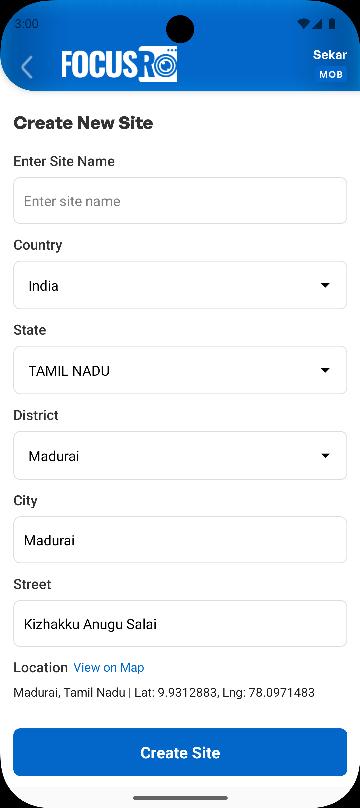
- Fill the required details to create new sites
¶ Account
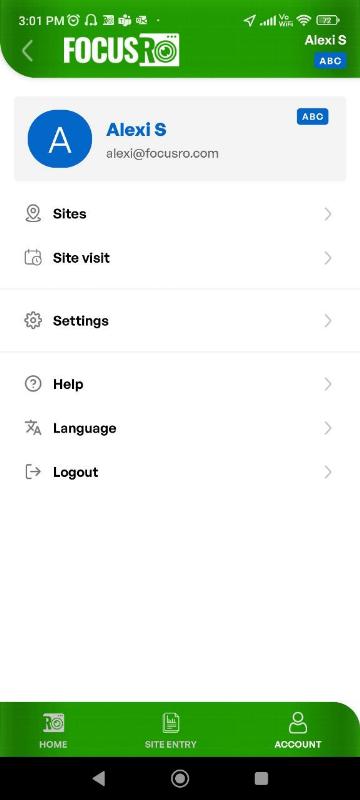
Open the Account Section
- From the app’s bottom menu, tap “Account.”
- You will see your profile details and available options.
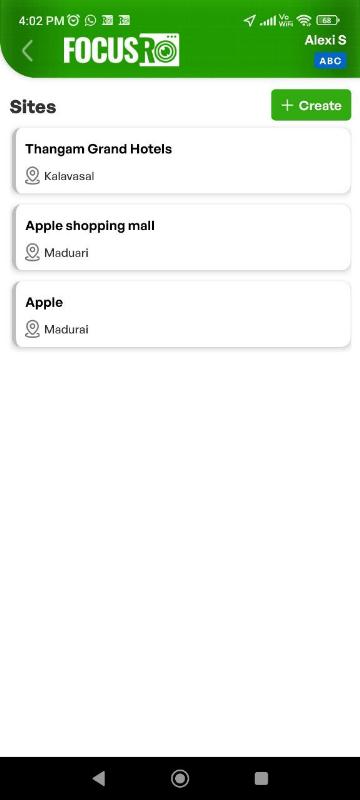
- Sites - Tap on “Sites" list of all the sites you have created will be displayed here. and to create a new site on the same sites page, you can also add a new site by tapping the “Create New Site” option. ensure you are at the correct site location before creating new site.
¶ Additional Options in Account Menu
- Site Visit – View or manage site visit schedules.
- Settings – You can adjust app preferences.
- Help – Get assistance and support, any queries you can email us support@focusro.com
- Language – App language, currently we are supporting in “English”
- Logout – Logging out of the FocusRO app will stop all tracking activities.
¶ Resetting Your Password
- If you forgot your password, on the login screen, tap "Forgot password?"
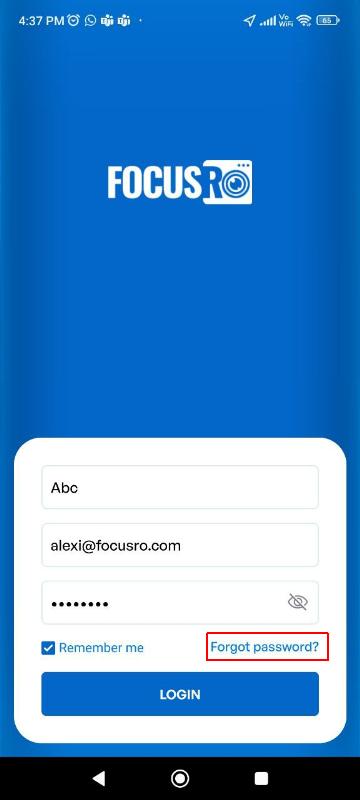
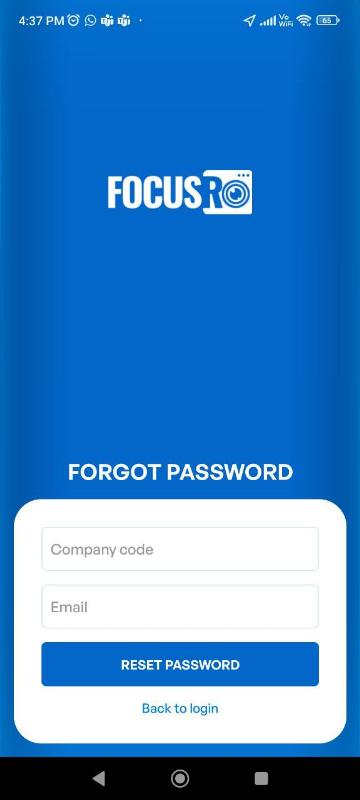
- Enter your “Company code” and “Registered email address”.
- Tap "Reset Password".
- You will receive a new password to your email.
.jpg)
- Tap “Back to login” to return to the login screen and sign in with your new password.